Where do plaintext passwords sit on file servers?
Most of them sit in files that someone needed for a task and then forgot: in configuration files of applications, in scripts for backups and logons, and in lists kept in Excel. Attackers know this too, and once they are inside a network they search the shares for exactly these files.
“Teams regularly find drives containing cleartext credentials for service accounts, web applications, and even domain administrators.”
MITRE ATT&CK lists this approach as a technique of its own, Credentials In Files (T1552.001). Typical places on a file server are:
- Configuration files such as
web.config,appsettings.json,.envor*.iniwith connection strings to databases. - Scripts in PowerShell, batch or VBScript that sign in with a service account, for example with
ConvertTo-SecureString -AsPlainTextornet use … /user:. - Setup answer files such as
unattend.xmlorsysprep.inf, which often contain the password of the local administrator. - Excel and Word files with columns such as “Password” or “PW”, created as a handy list for the team.
- Private keys and password databases such as
id_rsa,*.ppk,*.pfxor*.kdbx. A KeePass file is encrypted, but on a share that everyone can read it can be attacked offline. - Exports and backups, for example zipped copies of a configuration folder that were left behind after a migration.
Is a search with findstr or PowerShell enough?
For a spot check of a single share, a keyword search with findstr or with Select-String in PowerShell, for example for “password” or “pwd=”, is enough. For a reliable check of all your file servers it is not:
- Excel and Word files in the current format are compressed ZIP files, and so are ZIP archives. A text search does not see the password inside them.
- Keywords only find what is labelled. An AWS key, a token or a private key has no “password” in front of it and needs a pattern of its own for each format, while a word like “password” also hits every manual and every template.
- Unknown shares: you can only search shares you know about. Old servers, NAS devices and shares on application servers or on someone's own PC are missing.
- Permissions: you only find what your account can read. With access-based enumeration, folders without read permission are not even listed, so they are missing from the result without anyone noticing.
- Time and load: every run reads the entire share over the network again, which can take hours on large file servers.
- No history: a list of hits says nothing about who is responsible, what has already been checked and whether the password is gone after the fix. If you save the output, you create a new file with pointers to passwords, which should therefore never sit on a share.
Step by step with NoCredEx
With NoCredEx you check your file servers from one Windows machine, without an agent on the servers. Five steps take you from the first scan to the evidence that a password is gone.
1. Add the shares
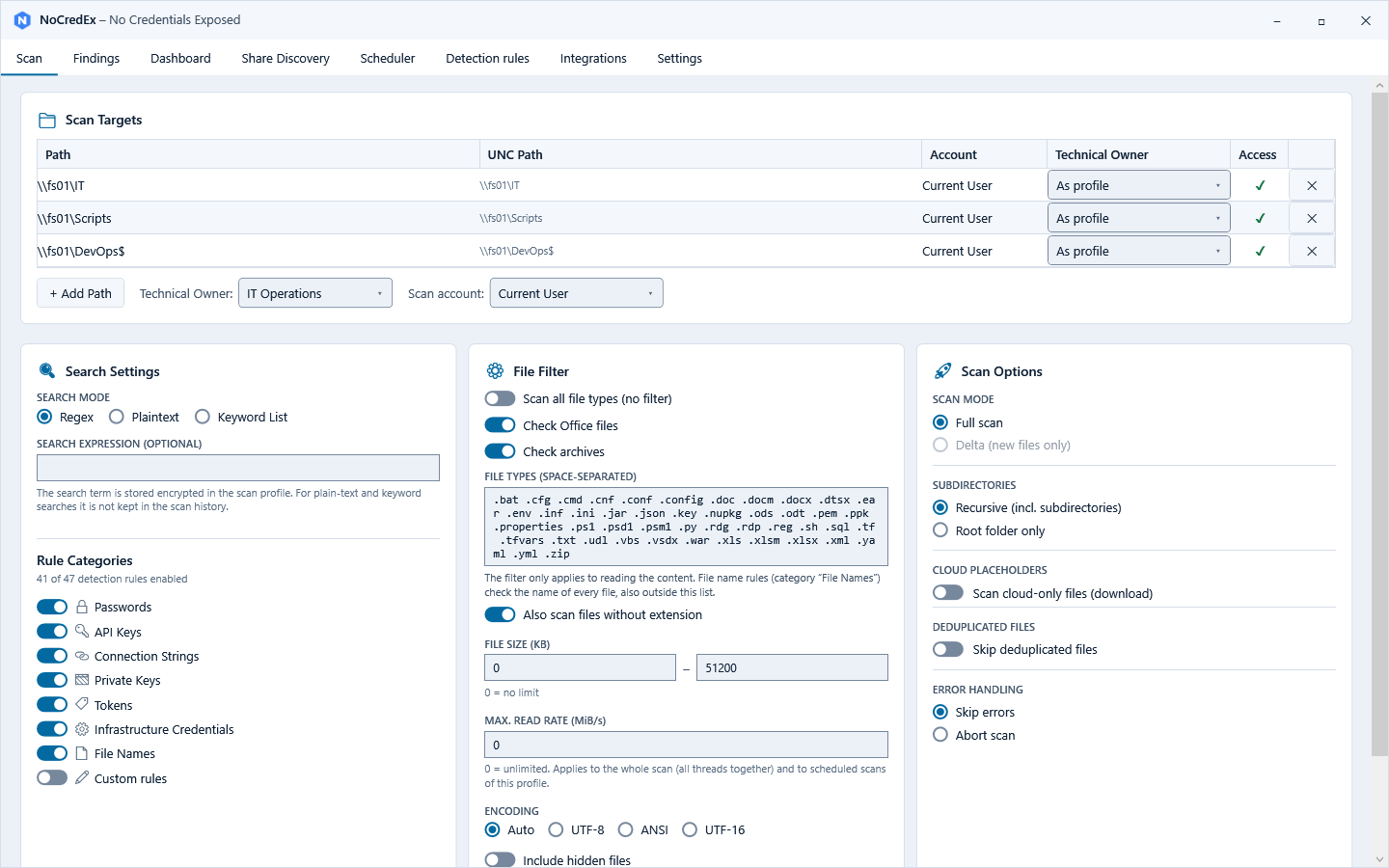
In the Scan tab, enter the shares NoCredEx should check, for example \\fs01\IT. For shares your own account cannot read, choose a scan account, for which read permission is enough. You can save the settings as a scan profile to run the same scan again later.
2. Start the scan
NoCredEx reads the files read-only over the network and checks them with more than 160 detection rules, including Excel and Word files as well as ZIP archives. You can add your own rules for internal formats and naming conventions. The value found is never stored, only a hash that lets NoCredEx recognise the same finding again.
3. Review the findings
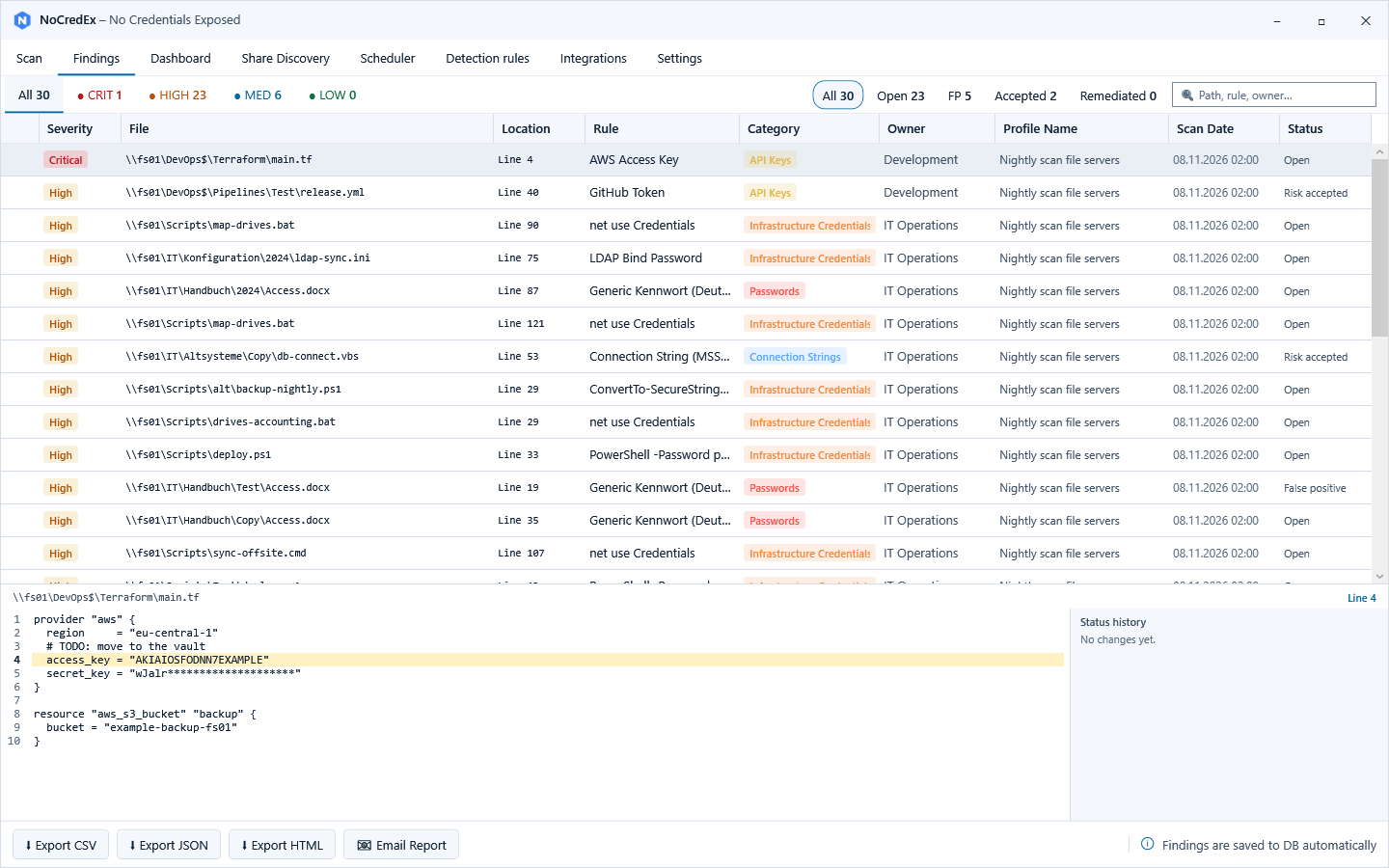
Every finding appears with file, line, rule and severity, and below it the spot in the file. You mark sample values and templates as false positive and cases you accept on purpose as risk accepted, each with a reason, so that the decision stays traceable.
4. Fix and let NoCredEx confirm it
Fix the finding as described below and scan again. NoCredEx reads the file and sets the finding to remediated only when the password is no longer in it, with date and time as evidence.
5. Scan regularly and track progress
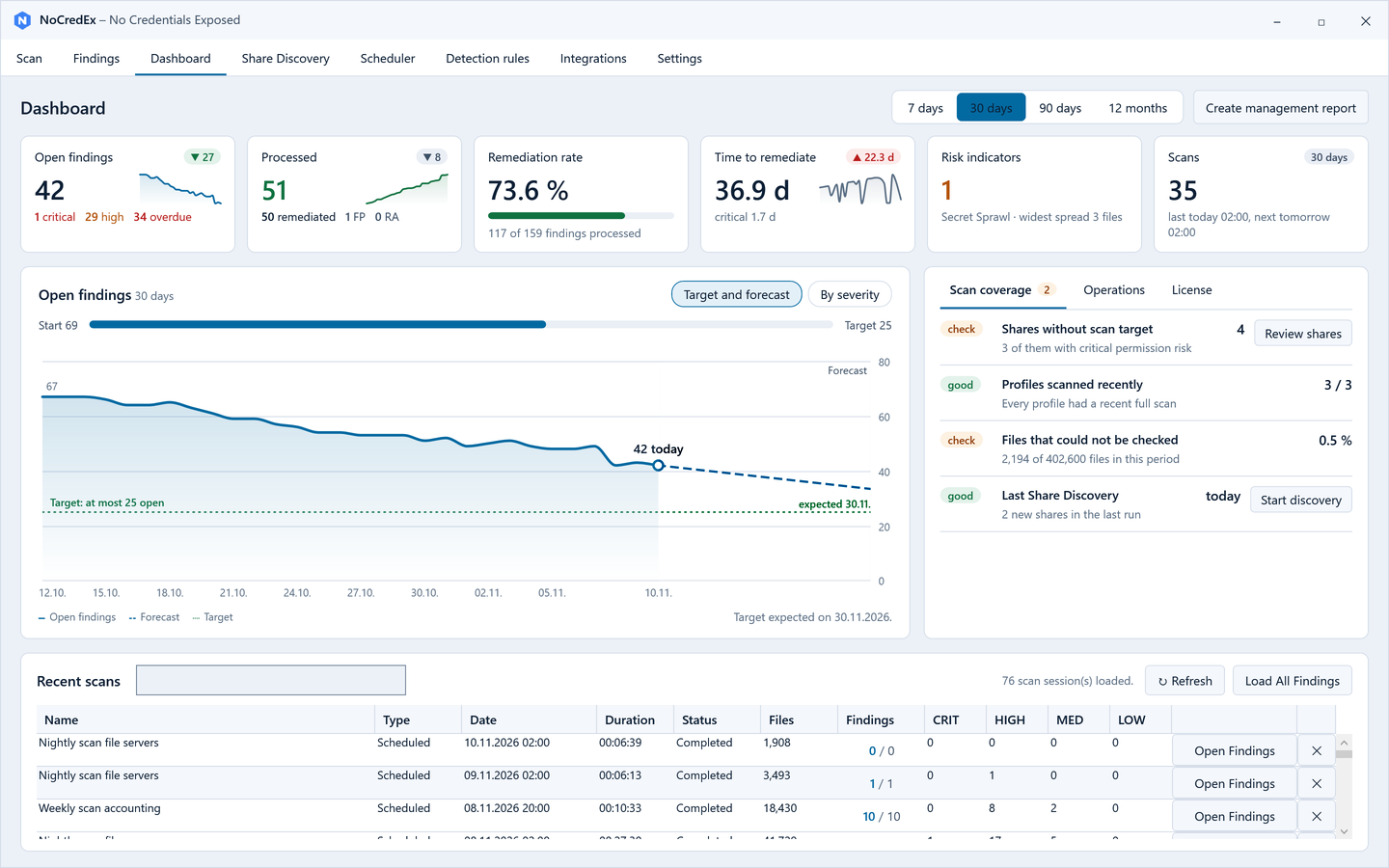
Repeat the scan regularly, and on request NoCredEx reads only the files that have changed since the last scan. The dashboard shows whether the number of open findings is going down, and the management report sums it up for the CISO or the management board.
What should I fix first?
Start with the shares that many people can read. A password on a share that “Everyone” can read is far more exposed than on a share that only the IT department can open.
NoCredEx rates every finding by severity, so you can start with the critical ones. Within the same share, the kind of secret decides: a domain administrator or a service account with wide rights comes before a test account.
How do I fix a finding properly?
Change the password first and clean up the file afterwards. Deleting the file alone is not enough, because the password may already have been copied and remains in backups and previous versions of the share.
- Change the password of the account or key concerned, or revoke the token.
- Find out who uses it: applications, scheduled tasks and services that use the old password need the new one, otherwise they stop working.
- Remove the password from the file and keep it in a password manager or a vault. For services and scheduled tasks on Windows, group managed service accounts (gMSA) are a good choice, as Active Directory sets and changes their password itself.
- Have it checked again: NoCredEx reads the file on the next scan and closes the finding as soon as the password has disappeared.
Monitoring continuously and providing evidence
A one-off clean-up helps for a few weeks, because new scripts and lists are created every day. That is why NSA and CISA recommend reviewing files and systems regularly for plaintext credentials and prohibiting the storage of passwords in files by policy.
Regulations point in the same direction: the NIS2 directive requires, in Article 21(2), basic cyber hygiene practices and access control policies, among other things, and ISO/IEC 27001:2022 covers the handling of passwords in control 5.17 “Authentication information”. A dated record of what was found and when it was fixed helps with every audit.
NoCredEx keeps this record for you: every finding with its history, who marked it and when it was remediated. More under Operations and integrations and Remediation and evidence.
Frequently asked questions
Does findstr find passwords in Excel and Word files?
Not reliably. Files such as .xlsx and .docx are compressed, so the text is not readable in the file, and the old formats .xls and .doc are binary files. NoCredEx opens these files and reads their content, including macros.
Do I need to install anything on the file servers?
No. NoCredEx runs on a Windows machine in your network and reads Windows, Samba and NAS shares over the network. A connection to nocredex.at is only needed for updates and the activation of the licence.
Is it enough to delete the file with the password?
No. The password may already have been copied and remains in backups and previous versions. Change the password first and then remove it from the file.
Which permission counts, the share permission or the NTFS permission?
For access over the network both apply, and the stricter one decides. A share with full control for “Everyone” is therefore only as open as the NTFS permissions on its folders allow, and vice versa.
How often should file servers be checked for passwords?
Often enough that a new password is noticed before someone else finds it. A daily or weekly scan that reads only changed files, complemented by regular full scans, is practical.
Try it on your own file servers
If you want to see what is on your own file servers, join the evaluation phase and use NoCredEx free for three months with every feature. More about the secret scanner for file servers.